Thursday, 1 December 2005 |
Converting video for the Video iPod
 There are many programs currently available that will convert video of various kinds to a format compatible with the video iPod. While none of these are prohibitive in cost, I didn’t feel like spending lots of time downloading trial versions to figure out which one might work best, nor did I feel like spending on one that a few people like only to discover there’s another that actually does a better job. Since the video iPod is so new, many software companies that make converters are just now modifying their products to include conversion options for the iPod. Maybe in a month or two the dust will have settled a little more and we’ll start seeing some in-depth reviews comparing some of these applications to one another. In the mean time, as far as I’m aware, the only free program that’s been available is one from the same people who brought you PSP Video 9 (a video converter for the PSP) and Videora. The name of the program is “ Videora iPod Converter” and it has a wide (and sometimes overwhelming for a newbie) assortment of settings one can manipulate for your conversions. Aside from the obvious ones like resolution and bit rate, there are others like Qscale, and conversion mode that are not nearly as well known. As with much freeware, there’s no real documentation available, nor is the program very straightforward to use. You need to create a profile for a given collection of settings, or use one of the programs presets. If you choose to use your own settings, you’re in no way guaranteed that they will work with the iPod. You may be able to get them into iTunes but they won’t transfer to the iPod if some setting is off. Screenshot of Videora iPod Converter converting a file Screenshot of Videora iPod Converter Profile Screen The two settings that this happens for most often is bitrate and resolution. The iPod will only handle resolutions that add up to 230,400 pixels - whatever the width and height dimensions are, multiplied they can’t add up to more than this number or the file won’t transfer. Similarly, for H.264 files, iTunes will not transfer it if it has a higher bit rate than 768Kbps – although at least in this latter case there is a hack to get around this, thanks to a user on the Videor iPod Converter board named DaProphecy. Apparently the chip in the iPod that plays video has the ability to play higher quality video than Apple lets on in their specifications. iTunes prevents you from transferring in this higher bitrate despite it being playable, so you basically have to trick iTunes into transferring the file. This, of course, is ridiculous and should not require a hack to get around. Hopefully Apple will update iTunes and make this a non-issue. Because of the massive numbers of settings, and no real clue as to which ones would work best in which cases, I determined to spend an inordinate amount of time transcoding a 55-second video clip into as many of these as made sense at the time. In all, I made 40 different conversions, although I’m sure I barely scratched the surface in terms of what I could have done. Still, I wanted to get a general sense of what each setting would do, how they would compare to each other in terms of the amount of time the conversion took, how big the file was, and what the quality of the video was both on the iPod and when exported out to a TV. I figured if I was going to convert my 200+ DVD library to video files for the iPod, that I should be fairly certain what settings to pick so that I don’t waste time converting to something which in the end wasn’t as efficient as another format in terms of time and storage space. I set about creating an Excel spreadsheet, linked here, which contains all my data, as well as my impressions of quality. The first sheet shows various conversions to H.264, whereas the second sheet displays results for conversions to MPEG4. Both of these are compatible with the iPod. To summarize my findings, much of it was predictable. Usually the higher the bit rate, the better the quality, although occasionally it was hard to tell the difference. When exported to TV, the higher the resolution, the sharper the image. However, there were some findings that I hadn’t expected. First of all, making a 2-pass conversion usually did not improve the video noticeably, but did double the time needed to convert. File sizes for 2-pass conversions were almost always about the same give or take, the only big exception being MPEG4 > QC-VBR mode, which decreased the file size by about 2/3, although unfortunately this smaller file size also equated with much poorer quality video. While I probably will not use it extensively, the iPod’s ability to pipe the audio and video out to a TV is something that really interested me. While critics complain about the size of the iPod’s screen for video, you can’t complain about it if you pipe that video out a 27” (or greater) monitor. I own a 34” widescreen TV which I suppose is about the same as a 27” standard (4:3) TV and used that for testing these conversions (as well as viewing them on the iPod itself). One thing I found interesting was that some video artifacts were much more noticeable on the iPod than on the TV– for example some pixilation when clashing colors like red and green were adjacent to each other. Even some of the “blotchiness” of certain colors seemed less noticeable sometimes on that large screen. I was viewing it from about 5 feet away, which I think is equivalent to holding the iPod about 5 inches from my face! I expected all the defects to be much more obvious, but perhaps the interlacing of a TV screen somehow smoothes out some of these. What I did find was that some of the higher resolution conversions I made, when played on my TV, were excellent in quality. Perhaps not quite DVD quality, but maybe equivalent to a VHS tape if not even cable or even satellite. Unfortunately, these same files, when played on the iPod, had artifacts that made them difficult to watch – similar to the “banding” that one might get and worn VHS tape. This was particularly evident whenever the camera panned at all. So my initial hope that I’d be able to convert one file and have it play in optimal quality on both the iPod as well as the TV was not to be. The lower resolution conversions are not terrible when viewed on the TV, but it’s pretty obvious that something’s off, at least from 5 feet away. The picture just isn’t very sharp, even with the best conversions. It’s a little like watching a 30-year-old TV. As far as the conversions themselves go, they took a bit longer than I expected. Even the shortest one took about 15% more time than the clip itself, and the worst took 700% as long! Then again, you may have different results. I converted these on a 2.5-year-old laptop with a 2Ghz P4 processor and 1.25GB of RAM. Very possibly you have something newer and faster. File sizes varied greatly as well, from a small 3.4MB to a whopping 25.6MB for just this small clip. Luckily, the 2nd Pass, which normally doubled the time to convert, was usually not a factor in terms of quality. And file sizes didn’t always equate with quality either. This photo was taken from my TV. It was a lower bitrate setting and you can see blotchiness, pixelation, and other artifacts pretty clearly. Here's another picture off of my TV, but this one at a much higher bitrate. While still not crystal clear, it definitely looks much better than the first image! I have to divide my conclusion into to separate categories – best for iPod and best for iPod to TV. If one is mainly concerned with playing on the iPod itself, it seems the winner is probably H.264 > CBR at 768Kbps, 1 Pass. This has one of the smallest file sizes and fastest conversion times. It’s certainly possible that some may find some of the other modes to edge it out slightly, but most of those modes produce files that are at least double the size, maybe more, and take at least a little more time to convert. But if storage isn’t an issue (on the iPod itself, even at the higher 60GB level it still IS an issue), and your system is incredibly fast, or you have extra machines to do conversions for you, you may find it more worth it to try some of the other settings. For iPod to TV, the winner seems to be MPEG4 > CBR at 544x408, 2500Kbps and one pass. This had one of the shortest conversion times and the smallest file size for a higher-resolution conversion, and rivaled or beat all of the other such conversions. A final disclaimer: these quality settings are of course subjective. As they say, your mileage may vary. I’ve compared a pretty limited range of video information in a 55-second clip, and I’ve done this for each of the 40 files on both the iPod and the TV. That’s a lot of stuff to compare even for a relatively short clip. I’ve already spent a week or so transcoding and then reviewing all of these, but I can see where to really scrutinize this stuff in detail, one would need a larger clip with a lot more variations in color, motion, etc., and have the luxury of being able to review each clip about 20 times to note various things down. I’m not even an expert at any of this and so my impressions are from someone who is not a videophile per se, but just a gadget freak who also loves to watch DVD’s. So please take this all with a grain of salt. I did the best estimation I could within my limited timeframe, expertise, and tools, but I can’t claim this as being at all definitive. I look forward, in fact, to those who might be able to clarify, confirm, or dispute certain findings so that a more accurate picture for all can be obtained. In the mean time, I hope this serves as a decent primer for those who, like myself, found themselves lost in the sea of possible settings with no idea how they might translate into quality, time, and space in the real world.
|
Monday, 28 November 2005 |
Log Me In
 My family came in for the Thanksgiving Day weekend and I was lamenting with my brother-in-law, a fellow geek, about how I ran into a bunch of problems accessing email from work. I use a hosted exchange account that lets me access my email via a web-based "Outlook Web Access." Unfortunately, though, this only works in Internet Explorer and you need to have ActiveX enabled and be able to install new ActiveX components. It just so happens that on the system I'm working on I can't do this. This leaves me with a couple more options. One is to access email via a very dumbed down text-based interface. As it happened, this interface was not working on Tuesday. Normally, what I end up doing is just using my phone to send and receive email. This works ok, but I really can't type long messages in it as it takes forever typing on the little keyboard. Also as it happens, I occasionally leave my phone at home, or it runs out of juice at some point, becoming unusable. So my brother-in-law was telling me about this remote access tool that he uses called LogMeIn. I decided to install it at home and see how it worked. The install was simple and I didn't need to fiddle with router settings at all. I tried it from another computer on my home network, but it should work the same from anywhere since it's going out to the internet and back in via a browser. That's how this works. You establish your home computer as a host and set up an account at LogMeIn.com, then you connect to that account over the web via a remote location. You see your desktop and any applications as you would, albeit a bit more slowly. Remote control apps have been around for a long time and I remember hearing about Citrix years ago. The nice thing about this, is that at least for the types of things I would use it for, it's free. LogMeIn has more premium services that you pay for, some of which I'm sure would be very useful to business users. A number of nice things I've noticed so far:
- You can access your desktop via various methods, including ActiveX and Java.
- You can access it via any system that can run a java-enabled web-browser
- You can change screen resolutions and desktop panning options on the fly without having to reconnect, etc.
- You can change the number of colors that it uses on the fly. This way, if you don't need lots of colors (for displaying photos for example), you can decrease them, which will result in speedier displays.
Not only can I access my regular Outlook account, but Trillian, and just about anything else on my computer. No more worrying about whether I copied a file I was working on at home onto a key drive, or sending myself email with the file. Just log in. Seems pretty simple! Of course, I haven't tried this out for an extended period of time, but my brother-in-law seems to have been using it successfully for some time. Might be a good option for those of you who are always connected to the internet at home via a high-speed connection and whose corporate networks don't allow a whole lot in terms of email access, IM, etc.
|
Friday, 11 November 2005 |
Video Ipod
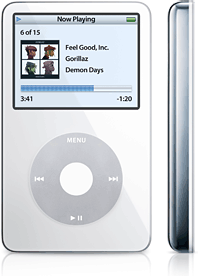 Several weeks ago, Apple announced their newest version of the iPod, the much anticipated one that allows owners to watch videos. I generally have very good rationalizations when it comes to upgrading my gadgets and this time was no different. After all, I had resisted getting the photo iPod when it came out earlier this year. No, I figured, there needs to be a very significant value added over and above what I have in order to upgrade. Having a better screen, even allowing you to view pictures (something I could do on my Phone for years now) was not enough. While I said I'm not the biggest video buff, especially these days with a new baby in the house, the various new features and enhancements that were better than my old 4th Generation monochrome iPod (all of a year old now) just added up to a critical mass and convinced me that it was time to upgrade: For one, there's the video, of course. While I'm probably still probably going to be using the iPod 99% or more for audio, it would be nice to load many of my unwatched DVD's that I've been wanting to watch for years, not to mention TV shows that I miss on a regular basis these days, or whole series that I missed out on. As you may have heard, Apple and Disney teamed up to offer some of Disney's content, which includes some ABC shows like "Lost" and "Desperate Housewives". I'd always heard raves about Lost, but never got around to watching it last year and I'm one of those people who refuse to pick up watching a show when I haven't come in at the beginning – at least dramatic shows. While buying the shows individually can add up at $2 a pop, one thing that I haven't heard mention in the other articles I've read about these downloadable shows is that you can actually buy a season's worth of a show for nice discounted - about $1.40 per show instead of the normal $1.99. Unfortunately, you can't do this with a season that isn't complete - I can't pay for all of season 2 of Lost because it hasn't all been made available yet and Apple just doesn't seem to have the mechanisms in their iTunes Store to handle this kind of "subscription" of ongoing content. Maybe their venture into podcasting will help them implement something like this in the future, though. Then there's home video. We got a digital camcorder last Spring in anticipation of our first child and I've been slowly trying to figure out video editing and production. I figured it would be a nice thing to keep a collection of clips of events or just clips of our daughter playing and smiling. The new iPod will also let you record audio at 44kbps, rather than a measly 8kbps for previous models. Not that I have any big plans to start my own podcast, but this does at least open up the possibility of recording audio on the go, whether that's just notes to myself, a conversation, a class, or our daughter "talking" to us. The large capacity of the 60GB iPod would seem like more than enough for all your possible needs, but Video can take up a LOT of space. We are talking hundreds of megabytes per hour - and that's highly compressed! Even at 60GB, Apple states its capacity at all of 150 hours of Video. This might seem a lot, but I have about 1,400 hours of Audio Books currently on my iPod, and these take up less than 20GB. This audio book collection keeps growing as I continue to download books from a subscription to Audible.com and little time to actually listen to them and move them off the iPod. Another 12GB or so are taken up by a music collection which I'm sure will grow as our daughter gets older and we put more music for her on it. Finally, there are couple of gigabytes of podcasts that I can't seem to get caught up on either! So already I was getting dangerously close to my old iPod's limit of 40GB! That extra space will really be useful, although of course I would love to have 100GB (or 200GB for that matter) instead of 60GB! My old iPod supposedly had 12 hours of battery life, and while that might have been true initially, it always seemed the battery meter was getting low way before that time. It could be the battery meter was just faulty, who knows. In any case, the new 60GB model that I bought is rated at 19+ hours of playtime for music, so I think I could safely listen for many days without having to recharge. Of course, Video can kill the battery in around 3 hours, so if I end up using it a lot for that, I may have to look into a battery pack that expands battery life to 9 hours for video. Finally, the new iPods are considerably thinner than the old ones. For someone who has lots of gadgets and sometimes carries them in pockets, this definitely helps me not look like a total buffoon, in addition to just being more comfortable to carry. Oh yes, also, I figured, I could sell the old iPod on eBay and not pay full price for the new one.
Equipped with an airtight rationale for upgrading, I went to the Apple store the week after the new iPod was announced and was told that it wouldn't be in until the end of the month (October). However, on the iLounge.com forums, people were sighting them at other Apple stores across the country, so I kept coming back and pestering the poor Apple store staff. Within a couple days they had the 30GB model, but it was not on display. Instead the item was tucked in the pocket of one of the staff that let me look at it. He said there would be no 60GB model until the following week, but I knew that these estimates seemed always to be very conservative. So I continued to return every day and ask if they had a 60GB model and within just a couple of days, they did and I grabbed it!
Impressions
My general impressions of this "5th Generation" iPod model are generally favorable. I'll talk about the video aspects of it below, but other than that, it seems to work as well, for the most part, as my old iPod. The big color screen is of course a whole lot prettier than my old monochrome model, but it also seems a bit more "sluggish" in its display. That is, when navigating between tracks or even between the different "pages" of an individual track (the scrubbing page, the album art page, the rating page, etc.), the screen doesn't transition immediately, but lags a second or two before changing. When navigating to the next track, the audio for that track kicks in immediately, but the screen stays on the old track's info for a second or two before changing. This isn't a huge deal, but it makes it feel a lot less responsive than I would like. A couple of other minor issues that may or may not annoy some people follow: 1. The lack of a true power supply. All previous iPods had a separate power supply to charge the unit, but for these, you have to charge them via the computer via the supplied USB cable. Not particularly convenient if you want to take the iPod with you on a trip and don't want to or can't bring your computer! You can still buy a power supply separately, but for the price, Apple really shouldn't be REMOVING accessories that were previously included. 2. The lack of a firewire interface. IPods can no longer connect to a computer via firewire. Some people believe firewire is faster than USB2 despite that according to the specifications USB2 is slightly faster. I've also heard that for video transfer from digital camcorder, firewire is critical. But I'm not sure how much of that is pure transfer speed and how much are other factors like consistently steady throughput. In any case, there's probably not a tremendous difference between the two and so you wouldn't notice a big different unless you are transferring a significant amount of content. 3. The removal of the port on the top of the iPod which many accessories use. This essentially has made these iPods incompatible with dozens, if not hundred of accessories that used this port. I had two of these myself, which I was fortunately able to sell along with my iPod. Many others, I'm sure, would have much rather keep their accessories, especially if they were expensive to begin with and/or can't be resold for much. Video: is it the Video iPod or iPod with Video? When these new iPods first came out, Apple touted them not as the "Video iPod" but as an iPod "with Video capabilities." It was as if they still weren't ready to come out and say that video was in any way a central feature. They had to qualify this release by saying that the iPod was still primarily a music player. Whether this was BECAUSE they didn't think the video capabilities were good enough, or whether they actually didn't put everything they could into making video as good as it could be, I'm not sure. What I do know is that video on the iPod works reasonably well considering the small screen size, and some other issues that I'll get to below. As far as screen size is concerned, Apple enlarged the screen as much as they could within the confines of the standard iPod dimensions. They even sacrificed a bit of size of the click wheel in order to do this. Sure, they could have radically altered the design by stretching the screen across the entire front and changed the click-wheel to some other interface, or even implemented a touch screen that included the clickwheel as an image on that screen instead of an actual hardware click-wheel. Obviously, though, Apple did not want to take such a big risk in radically altering the interface that has helped them win and maintain such a commanding majority of the MP3 player market. As it stands, the screen is certainly watchable, but I don't know if I would want to spend multiple hours staring at it! Even holding it up close, watching an episode of Lost, I felt a little like I was taking the images in through a straw. A big straw - maybe something akin to the cardboard tube that paper towel is wrapped around – but still it was constraining, if you understand what I mean.
The other way that Apple made a very hesitant step in the direction of Video was in its choice to only allow a couple of video formats to be compatible with the new iPod. Neither of these formats is proprietary per se, but they are not particularly popular outside of Apple's own software. I'm sure part of this was also to prevent those who have big libraries of video in more popular formats (read "DVIX"), that they've either converted themselves or gotten illicitly off Grokster or BitTorrent, from easily playing them on the new devices, thus getting Apple slammed by big media companies as being too friendly towards file sharers. The result is that you can still do this, but it just takes more work: if you have a bunch of DVIX-encoded video files, you just have to convert them yet again to H.264 or MPEG4. As for what kind of content there is available, you can download a select list of ABC TV shows - five to be exact from Apple's iTunes Music Store. You can also download around 3,000 music videos. Whether it's a 3-minute music video or a 30-minute TV show, the price is still $1.99. Apple also announced that, after the first 20 days from the launch of the new iPod and the video content in the iTunes music store, over 1 Million of those videos had been purchased. They did not reveal how many were the TV episodes and how many were music videos. Not bad considering this product was brand new and wasn't even easy to find in stores for the first couple of weeks after the launch. Then again, I wonder how much of these purchasers were people like me who don't plan to make a habit of doing it, but still wanted to see a sample of what they could have on their new iPods without going through all the effort of converting. Unfortunately, it seems that the other networks are not jumping onto the Apple bandwagon, but at least for now scrambling to sign deals to make their content available in other "downloadable" forms. NBC has signed a deal with DirectTV and CBS has signed a deal with Comcast so that respective users of these services can download shows onto their DVR. But you can't then transfer these shows to a portable player, which is the main feature of the iPod. So, this then forces people who want to have portable content into either recording these shows themselves and converting them, or even worse obtaining illegal copies on the Internet - all because the networks still want to limit how people watch, despite this supposed venture into new forms of content distribution. Just today AOL and Warner Bros. announced a new online venture to bring older tv shows to the internet, but again, there seems to be no plan to offer an option for content portability. Another announcement today from Hasbro does involve portable content, but only through Hasbro's VUGO device. Even at best it looks like the interests involved will still end up carving out small domains where only certain content is available via a given service/device. A fragmented mess that's bound to encourage pirates to record or obtain the content illegally and crack the protective DRM that prevents it from playing on all but one device. Of course, as with music, one might already have a lot of video in the form of DVD movies. These movies can be transferred to the iPod, but it isn't a trivial process. It takes time, some degree of technical knowledge, and experimenting with tools that are still clunky, in beta, or which will cost you additional money. And don't expect Apple to help you very much in this effort. Apple's tool for converting video to a format the iPod plays, Quicktime Pro (Mac users can also use iMovie), will not convert a DVD for you in and of itself - you still need a DVD decoder. Even then, Quicktime Pro is a $30 program and is one of the notoriously slowest video converters out there, although it does seem to work predictably without much hassle. Other applications are a lot speedier, but some have had difficulty in getting them to work at all. Some video formats simply won't convert in some of these applications, whereas other problems could be in the various settings that one can use for a given conversion (bit rates, keyframes, resolution, etc., etc.) that aren't exactly within the iPod's constraints. I experienced this myself in a free converter for Windows called Videora iPod Converter when I tried to convert some home video clips that were in uncompressed AVI format - what I thought was one of the most basic video formats. These AVI files were created with Adobe Premier Elements and whenever I tried to convert them, they would either not transfer to the iPod or they would only produce an audio track, not a video track. After trying just about every setting I could think of, I finally converted the AVI file to another format, and then converting it with Videora. This worked immediately. Other programs that offer conversion and dvd decryption in one package and have gotten some good reviews are Nero Recode and PQDVD on the PC side, and Handbreak on Mac (and Linux). In addition to the video that one can download from Apple and the video that one can convert from DVD, there's yet another category of freely available content available on the internet - video podcasts, video blogs, and other such episodic content. A new site that was just created to link to various kinds of content like this that is available in formats that will work right off the bat with the new iPod is FreeIpodVideos.org. A couple of other great sources for free video that you will undoubtedly have to convert to play on the new iPods are the Internet Archive's Moving Images and Google Video.
The one other video issue that I hadn't thought much about before I got the iPod (mainly because I've never had a video-capable device like this) is the issue of outputting the video to a TV. Now, one might ask why you would want to do this if the whole point of having a portable player is to watch things away from home. True, but at the same time, if you could watch something on a much bigger screen, wouldn't you opt for that, especially if you want to share the video with multiple people? Just as people bring their iPods to friends and hook them to a stereo so that everyone can enjoy your music collection, so too can you share videos or pictures. You still have to buy an extra connector to do this either via Apple for $20, or from a Radio Shack or place like it for a bit less. Once you export the video to TV, you will see that video that has been optimized specifically for the iPod within its native 320x240 resolution, and it will not look very good except on sets that are at most 25". Since most people tend to have larger TV sets these days, this becomes a problem. One way to avoid it is by changing the resolution to something higher than what the iPod itself displays. The iPod will then just scale it down when displaying it on its small screen, but will display all the resolution when connecting to a TV – given the TV can display the given resolution. Unfortunately there are still limits. Apple lists a max resolution for MPEG4 files as 480x480. This is somewhat of an odd resolution, being completely square, as opposed to the more rectangular standard TV screen or the even more elongated widescreen dimensions. But that 480x480 is a bit misleading. What it really means is that 480 pixels times 480 pixels yields a total of 230,400 pixels. So one can create videos of ANY resolution as long as their total pixel count doesn't exceed this. For example 640x360 also comes to 230,400 pixels, but is much more rectangular. In any case, when you pump up the resolution from 240 vertical lines to 360 or even higher, the picture becomes much more watchable on a large TV. The one issue that remains may not be an issue for everyone, but it is for anyone who has a widescreen TV. It appears that the iPod doesn't support a way to export anamorphic widescreen video to a widescreen TV. By this I mean that anything that is played on a widescreen TV via the iPod, whether that source video is in a widescreen format or not, does not fill the entire widescreen TV. Rather, they show up in the middle, so there are boxes on the sides as well as the top and bottom. I have asked on the forums about this and no one has given a satisfactory definitive issue. I even tried to get in touch with Apple, but I guess a lowly blogger is not worthy of a response. If they somehow surprise me after a week and actually answer my question, I will post an update here. Here's an image of a widescreen movie playing on the iPod itself: 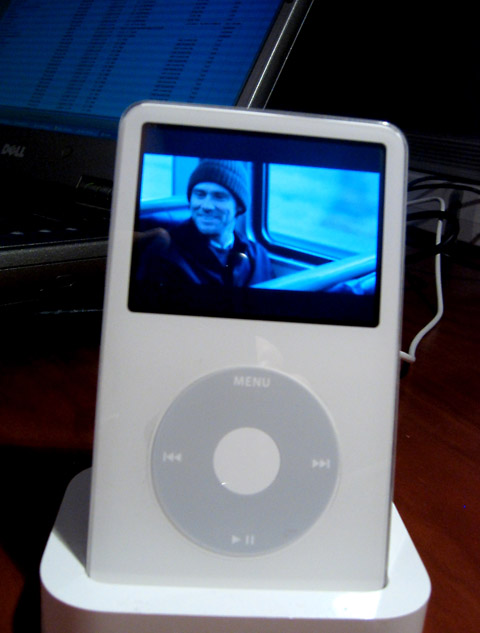
And here's an image of that same movie piped out to my widescreen TV: 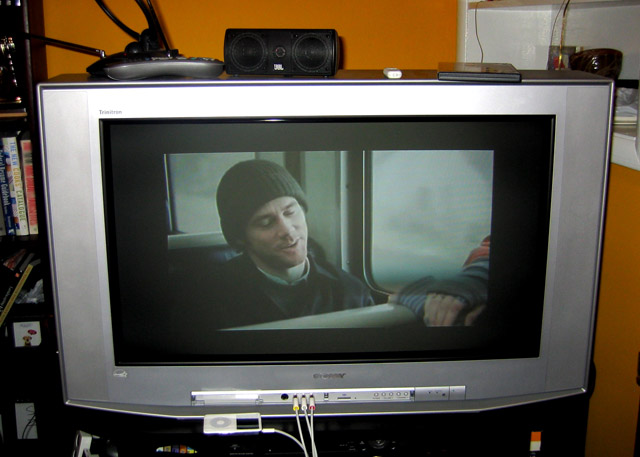
Again, this probably is not going to be a huge issue with a lot of people right now, but I was really hoping that this would work since most of my DVD's and all my recent home video is filmed in widescreen. So having to watch it in this small area within my TV set seems a bit pointless. Then again, I could always export the home videos to DVD and get full resolution displays, it just would be nice to be able to view them in the same (or almost the same) way via the iPod on my own and other people's widescreen TV's…
|
Tuesday, 8 November 2005 |
Frappr
Ever since Google Maps came out, I've been using it and talking about it here. I love maps and GPS, and Google has allowed others to integrate with their mapping services via an open application program interface (API). The first integration that I came across that really impressed me was the one where someone integrated the real-estate classifieds on Craig's list – housingmaps.com. Now another developer has created a way for site owners or groups to set up their own map and allow people (visitors, readers, members) to populate it. It's called "Frappr" and I've set up my own map that you can access via the button on the right or via the one right here: 
So if you do read my blog on occasion, or even if you're a one-time reader, I'd love to know who's reading from where. You can even enter general comments or post an image in your entry. Frappr is similar in ways to a service that I used to have on my site from Bravenet, but they wanted a chunk of money every month for it, otherwise it was surrounded by ads and pop-ups. Frappr is free and has all of one set of inconspicuous Google Adsense ad. If you're a site or online group owner, this is a great way to see where your members or visitors are from, but they do have to actually go and fill in some information – it's not automatic based on visitor logs or such.
|
Back from the dead & NPR Podcasts
Well, not quite, but I think this is definitely the longest hiatus since I started this blog two and a half years ago - over two months of no entries! The reasons are somewhat obvious from the last entry, huh? But of course there's work as well. A new job has meant less free time at work to get personal things done - can you imagine, what nerve they have expecting me to actually work! ;-) Hopefully, I will make time to post something new and useful on at least a weekly basis, though. I think I can at least manage that! So for starters, I have revamped the links section at left - specifically I've updated it with the podcasts I listen to now. Many are the same, but there are a lot of new ones, particularly NPR podcasts. If you've been following this blog, you know that I have been rooting for NPR to get most or all of its shows out there as podcasts. A couple of months ago they did add a whole lot of content, but not exactly in the way I expected. Most of the new content added is actually clips from various shows they produce (Morning Edition, All Things Considered, Day to Day, etc.), but categorized. So you have lots of movie-related content strung together from different shows into one regular podcast. Another has lots of health-related clips, and so on. It's definitely a different approach than simply taking an entire show and plopping it down into podcast form. In some ways it's better for the listener because if they have no interest in a given subject, they don't have to fast forward every time a segment comes up on, say, the bird flu pandemic. It's of course a lot more work for NPR itself, so I'm a bit surprised they went to that level. On the other hand, there are also these "Story of the Day" or "Most Emailed Stories" which aren't a specific category. Because they overlap other categories, and even each other, I very often have to fast forward through stories that I've heard before. Then there are all the great shows that are put out by the individual stations rather than NPR headquarters. Shows like Good Food, Le Show, Leonard Lopate, Morning Stories, etc. NPR is finding it needs to adapt to the ongoing change in technology and distribution channels. Unlike the recording industry or the movie industry, it doesn't have to protect its outlandish profits or price scale of $20-30 Million for many of it's top performers, let alone the high costs of advertising, marketing, and executive salaries. And so it doesn't have to put everything into a DRM package, continue to charge outlandish prices for its content, nor arrest children because they downloaded some copyrighted content off the Internet. NPR affiliates still rely on two main sources of funding. One of these is the involuntary donation of every tax-paying citizen, although Congress has continually whittled away at this. The other source is through voluntary listener donations. In past years I have given to my two local affiliates as I used to listen to them daily. But now most of my listening is in podcast form, and my local affiliates don't put any of their shows into that form. So I'm seriously considering, at the end of this year, dividing up my allotted amount between the various stations that produce the podcasts I listen to, including KCRW, WNYC, WGBH, and others. I think this really does make sense because not only does it thank these stations for what they are offering and help defray those costs, but it also, I would hope, motivates other stations to get in their to offer their own content in a free, downloadable form. Some of my favorite shows, including Marketplace, This American Life, Metro Connection, and others) still aren't in this format. At this point there is just far too many shows that are freely available to worry about the shows that make it harder for me the listener to listen to them (whether that is due to lack of a downloadable version, or a downloadable version that one has to pay for - such as through Audible.com). I would even be ok with a subscription fee to all public radio shows, but I'm not going to subscribe to individual shows as I fear the price would add up significantly after only a few.
|
|